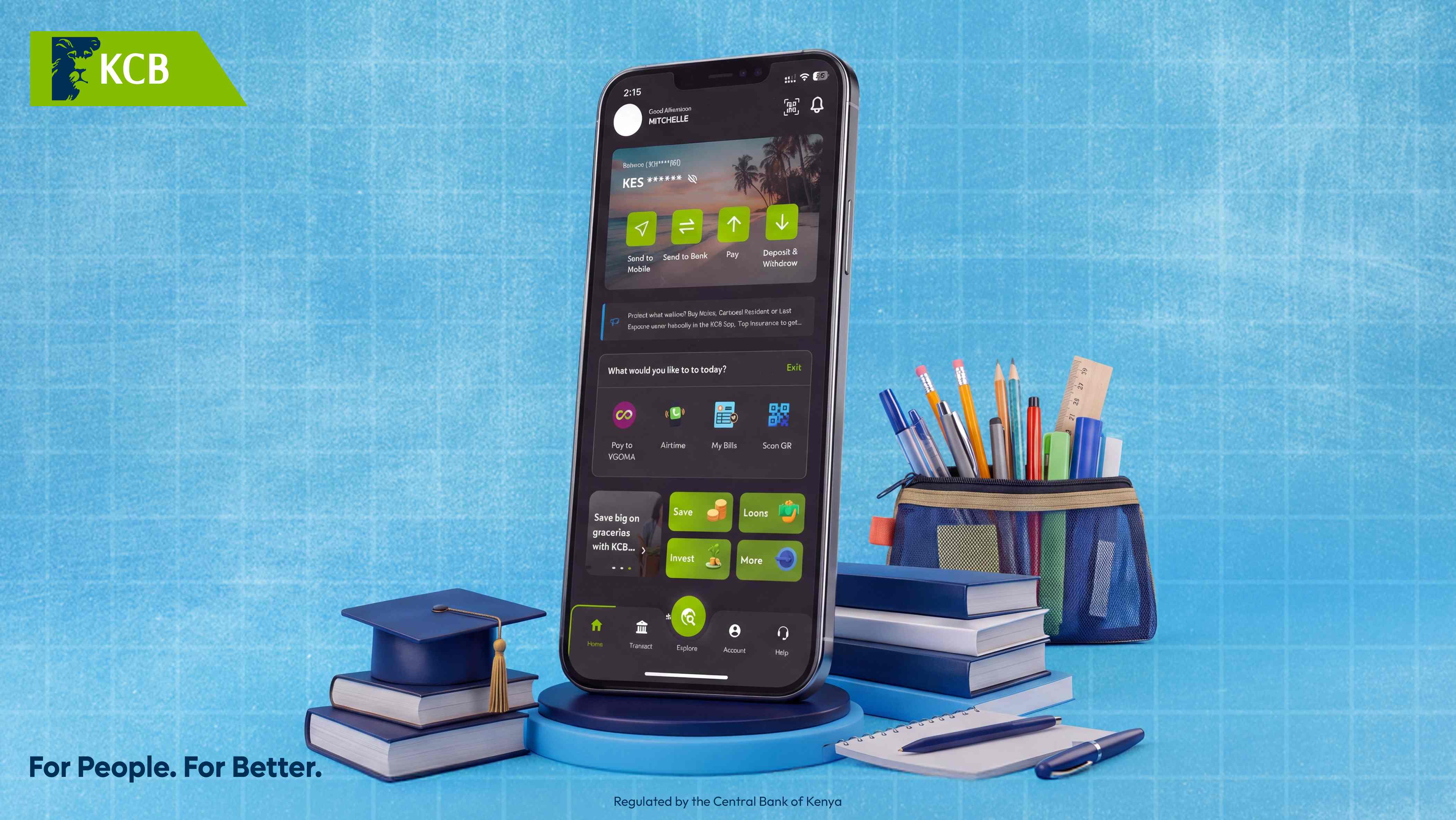
School-fees season arrives the same way every term, usually with a deadline. The classic move is to shift money from the bank to mobile money, then to the school's paybill — a fee at each step — or to take a number at a banking hall the morning of reporting day.
Let’s be real, lakini, this doesn’t make any common cents. Here's how to pay school fees on the KCB App (or *522#) directly from your account — instantly, even at 11pm the night before.
What you need
• The KCB Mobile App (or any phone for *522#).
• The school's payment details — its paybill or business number.
• Your child's admission or student number (this is the account/reference number).
• Enough money in your KCB account.
How to pay school fees on the KCB App
1. Open the KCB Mobile App and log in.
2. Tap Pay , then Lipa Karo
3. Search for your school’s name under the list of schools.
4. Select the school’s account number
5. Enter your child's admission/student number as the account or reference.
6. Enter the amount you want to pay.
7. Check that the school's name shows correctly, then confirm and authorise with your PIN.
8. Keep the confirmation SMS — many schools ask for proof of payment.
How to pay school fees via *522# (no smartphone)
1. Dial *522# and select Payments
2. Select ‘Utility Payments’
3. Select ‘Popular Billers’
4. Choose ‘Learning Institutions’
5. Pick the learning institution/name of school
6. Enter the reference number
7. Enter the paybill number, then the admission number, then the amount.
8. Confirm with your PIN and keep the SMS.
A few things that trip people up
• Use the exact admission/student number — an error here can post the fees to the wrong learner.
• Confirm the school name appears before you approve the payment.
• Keep the confirmation SMS or a printout; many schools require it on reporting day.
• If a deadline is tight, pay early in the day in case the school's posting takes time to reflect.
Paying college or university fees
Universities and colleges usually have their own paybill or collection account and use your student registration number as the reference. The steps are the same: choose the fees option, enter the institution's number, then your registration number, then the amount.
Frequently asked questions
Can I pay any school from the KCB App?
You can pay any school that has a paybill or KCB collection account. If you're unsure, ask the school for its exact payment details.
What do I use as the account or reference number?
Your child's admission or student number. This tells the school whose fees you are paying.
Will the school know I've paid?
Your payment posts to the school's account and you receive a confirmation SMS. Keep it as your proof.
Can I pay in installments?
Yes — you can pay any amount toward the balance, as often as you need.
Can I pay school fees without a smartphone?
Yes — dial *522# and follow the Lipa Karo option.
Is there a charge to pay fees on the app?
Please confirm any applicable charge with KCB before relying on it. [TO VERIFY]
Get started
Beat the reporting-day queue: pay fees in about a minute, straight from your account, whenever it suits you. Set up the KCB App now, or dial *522#, so the next fees deadline is a non-event.
Download the app NOW: https://kcbmobileappke.go.link?adj_t=23kas3l7